Showing posts with label teaching. Show all posts

Saturday, 7 March 2015

Participatory Culture, Hybrid Reality, and the Digital Native: The Reality of our Learners


This past week we had the first of a series of Tech Cafes which allows for an informal setting to share ideas, both academic and practical, around the implementation of technology in the classroom. Our first session's topic was about the reality of our learners as digital natives and how this might be reflected in our classroom practices. The description for the session was:

"In an attempt to better understand our students and how their understanding of the world is different than that of the digital immigrant, I will share some of the foundational insights I have gained during the course of my degree in Digital Experience Innovation."

Following is the recording from the session. Because this was a session about technology we of course had technical issues. The quality of the video is not great, but I have tried to splice in the slides during the worst of it. The camera has since been retired as a pile of plastic shards.


Tuesday, 13 January 2015

WeVideo is Nearly Perfect for the Classroom

As we continue to modify and redefine our classrooms to better reflect the skills our students need in the 21st Century, the ability to edit and remix video is key. I am lucky to be in a school that has Adobe Premier on every school computer in the building, as well as a fantastic Communications Technology department that teaches many of our students how to use it well. With all of this, Premier can still be difficult and slow to use. Enter WeVideo.

WeVideo is a web-based video editor that uses your Google Drive (and a lot of other cloud storage products) as the source for your video clips that you can then edit. I have been using WeVideo with my Grade 12 College students in the creation of movie trailers and mini documentaries. WeVideo works very well on desktop, laptops, and Chromebooks. They have recently launched an iOS 8 app that I have not yet had a chance to use.

Why it's Great!

WeVideo is perfect for the classroom for several reasons. The first, and most important, reason is that it allows students to choose from three different user interfaces; Beginner, Intermediate, and
Advanced. The Beginner interface functions much like iMovie, but with a more streamlined interface that makes dropping in video and audio clips easy. For my grade 12s this was an excellent place to start while they were learning how to import clips from their Google Drive. By the end of the first half hour of use nearly every one of my students had progressed to the Intermediate interface as it allowed them more control and flexibility.

The Intermediate interface starts to look more like Final Cut Pro or Adobe Premier. The large video "bubbles" what are used in the Beginner interface are replaced with two video timelines/tracks, an audio track, and a narration track. Many of my students used this interface for the simple trailer assignment, but when they moved on to the more complex documentary assignment they switched to the Advanced interface.

The Advanced interface is similar to the Intermediate except that you have more control. Students can now lock tracks and adjust the volume of the entire track line. You can also add new audio and video tracks.

But it's not only the interface that makes this a valuable tool. WeVideo provides a large library or themes, music, transitions, and sound effects which help students produce more polished work, but, more importantly, it cut down on the time they spent searching for these items online.

Once a project is finished, WeVideo allows students to export the video at up to 720p video quality for free (with the WeVideo logo in the corner and at the end of the clip). Students can pay to export without these limitations.

One Thing Missing

As far as I can tell, there is only one thing missing; WeVideo does not allow your to trim sections out of the middle of a video that you imported. If a student wanted a section from the beginning of a clip and from the end, but not the middle, they had to import the full clip twice, and then drag the beginning and end of the clip to the section they desired. By no means a difficult task, but a strange function to be missing.

Also, we occasionally ran into a small glitch. Sometimes when a student went to upload a clip they had added to their Google Drive, it would not show up. The very rare time this happened, students just disconnected and reconnected their Drive (easily done from the upload window) to solve the problem.

(SAMR) Modification Example of Classroom Use

While studying documentaries in grade 12, we discuss how filmmakers are able to create a point-of-view in their films and that those points-of-view do not necessarily represent the truth. To explore this point, students are tasked with creating a documentary about our school and present a particular point-of-view about the school.

First, students are not told anything about the assignment except that it will be about the school. Students are paired up and sent out around the school to take pictures and video of the school and the student experience. Students then upload all of their material into a shared Google Drive folder that I shared on Classroom. Once all of this material is captured, students are given the assignment. They develop the point-of-view they want to express and are only able to use the footage and images that were collected by the class.

The one trick that you need to know to do something similar is that WeVideo will only take photos and images from the student's Google Drive. Students can add the shared folder to their Drive by going to the initial folder link and, while signed in to Google, click on the button on the top right titled "Add to Drive".

This assignment is a lot of fun because students are able to show what is great about our school (most common) or what is not so great.

Update

One issue that my class has run into since I published this post is the amount of render time permitted for a free personal account. In order to encourage people to buy a WeVideo subscription, free accounts are limited to 7.5 minutes of render time per month. This means that if you want your students to export their video so that it can be played outside of the WeVideo editor, you can only assign 7.5 minutes (without the ability to revise their videos after feedback within that month). 

This has several broader implications as a high school educator. First, if teachers throughout your school start using WeVideo in their class, you may have many students without render time for your course. Second, if you do decide to purchase a license to use, all of the education licenses come with 50 included users. This does not seem to be in line with secondary school educators who will typically teach between 70 and 90 students each semester. I am beginning to notice a real gap in the marketplace for software geared towards high schools.

Wednesday, 19 November 2014

Adobe Voice is iPad Magic

If you are looking for an app that makes the purchase of an iPad worth while, look no further than Adobe Voice. Not only is this app simple enough for young children to use, but it is versatile enough that one of my Master's classmates uses it with great success; and it's FREE!

The App

The app is a very simple presentation creator which not only allows you to attach images, photos, or text, but also voice recordings to each slide. The app has a great variety of good looking themes, easy to use templates, and background music. Here is a video that shows the app in action.

Why it is AMAZING?

This app allows weaker or younger students to follow different types of stories which prompt them what to put on each slide. It also allows more advanced students to create presentations from scratch.

How I'm Using it.

I have been using Adobe Voice with my grade 10 English students while studying poetry. We have been working on developing deductive arguments. My students have been struggling with connecting textual support to their topic sentence/thesis. With poetry they work at identifying the purpose of a poem inductively and then trying to explain the purpose deductively. Instead of having them write their analysis, which they don't want to do and i'd rather not read, they create an Adobe Voice presentation in the same or less time that it would take them to write the paragraph. It is far more engaging and easier to share with the class.

My colleague was also very impressed with Adobe Voice after she used it with a very low functioning grade 9 English class. The students are reading at a grade 3-5 level and have a very difficult time sharing their ideas. They were able to use Adobe Voice after only a short introduction and created a presentation in less than an hour. This has allowed the students to be successful in an area that they have experienced little success in the past.

Update

The current version of Adobe Voice will now allow you to download the video to your iPad to then be used and shared in any way you like.

Monday, 10 November 2014

Using Google Classroom as an Assignment Dropbox

While in discussion with my colleague Nicholas Keller, he showed me an alternative use for Google Classroom that for him, as a Cooperative Education teacher, helps him stay organized and in sync with his students who are working throughout his community.

Because of the scheduling of Cooperative classes, Nick has decided to create three different Classrooms for his one course. Each Classroom deals with a different stage of the class, including Pre-placement, Logs and Journals, and Integration assignments. This unique use of Classroom has several benefits and disadvantages.


Benefits


  1. By using the assignment dropbox feature of Classroom and by only having the assignments listed in the Stream, students are easily able to see what needs to be completed before and during their placements. Students are able to see what needs to be done and what they might have missed for the entire semester all within two or three page scrolls. 
  2. One of the challenges for cooperative education teachers is managing the paperwork of students completing their work logs. Traditionally, this was done by having students hand in paper copies of the appropriate work when they are at the school. This can quickly become an organizational nightmare and can allow students to slip through the cracks. By using Classroom as a dropbox, teachers can quickly and easily see which students have not completed work and can then react accordingly, all with one click.
  3. The thing that struck me most about this use of Classroom is that it doesn't utilize the Stream function in the same way that I have been using it in class. One of my main criticisms of the Stream is that material that students may need repeated access to quickly moves down the stream with daily updates. Using Classroom as an assignment dropbox, and for nothing else, keeps the assignments top of mind (and page) for students.
  4. Not only will it keep material top of mind for students, but it also allows for the same Classroom to be used year after year. It should be nothing more then removing the students who completed the course and adding the new students to reset the Classroom and make it easily adaptable to the new semester.

Disadvantages

  1. Because Classroom does not allow you to reorder Stream posts, if you want to change an assignment or just the order in which they appear in the Stream, you would have to delete everything and start again.
  2. By not utilizing the Announcement functionality, and the fact that Classroom does not allow you to embed a calendar or create multiple Streams for one Classroom, students will have to go to more then one place to manage their course work.
  3. Marking with a rubric is still an issue as there has been no functionality update to make this possible.
The simplicity of this approach and the ease by which teacher and student should be able to manage complete and incomplete work is an interesting and useful model for anyone in a highly independent and dynamic teaching environment. Thanks for sharing Nick!

On a side note, has anyone run into the problem of Classroom switching a student from one Classroom to another? This has happened to me twice so far this semester. 

Tuesday, 28 October 2014

Five Things You Should Know Before Using Google Classroom

If you are considering using Google Classroom as a part of your courses, here are five essential things you will want to know.

1. Google Classroom is a black box

Maintaining regular communication with parents is a constant challenge for teachers. Other online platforms I have used in the past made the arduous task of keeping 80+ parents informed on what is going on in their child's class a simple task. I could send parents a link the my course calendar, website, or wiki and that was the end of my effort. Google Classroom does not allow this to happen. You won't even be able to share Classroom with your colleagues or student success teachers without adding them as a student. I understand that privacy is the central driver behind this policy, but in my opinion, this will prevent Classroom from receiving mass adoption.

2. Google Classroom is not a course management system.

If you are looking for a place to set up units and prepare folders of resources ahead of time, Google Classroom is not for you; Google Drive is definitely for you, but not Google Classroom. Drive will allow you to set up files for units and plan resources ahead of time. If you want your students to have access to all of your files from day one you can share the folder with your students. You could share the folder on Classroom, but do not think of Classroom as a course website, but rather as a Facebook news feed or a Google stream.

3. Google Classroom is all about the here and now.

Google Classroom's Stream will make it easy for students to find exactly what they need for a particular moment in time. The teacher needs to update the Stream often so that the relevant information for class that day is at the top of the stream, ready to go. If you are in a one-to-one device environment, this can help simplify your day significantly.

This focus on the present can also cause issues. If, like me, you are planning on using Google Classroom daily you may find the format of the Stream frustrating. Throughout a unit I will provide information sheets and links that students need to access throughout the next couple of weeks. This information quickly gets pushed down the stream and ends up requiring scrolling and page refreshing (which has recently resulted in the page automatically scrolling all of the way to the top) to find exactly what a student needs. Students could "make a copy" of each information sheet, or copy links into their bookmarks, but in reality, this will almost never happen.

4. Assessment in Google Classroom will not work for everyone.

My single biggest frustration, and one of the key selling feature of Classroom, is its handling of assessment files. What I do like is that you are able to send assignment sheets to students with only a few clicks and that you can send a copy of that assignment to each student where it is stored in a folder in their Drive.

The key issue I have is that evaluating the work when it is finished is tailored to a very specific form of assessment. The built in assessment functionality only lets you mark the assignment based on an overall average or point system. Our school system marks with a 4 category, 5 scale rubric. There is no way to set a rubric as a marking schema, and if you do not attach the rubric when you originally create the assignment (perhaps you are co-creating your rubric with the students) you are not able to edit the assignment and add the rubric with the option of giving it to every student.

If, like in my department, you have students hand in work, provide feedback for improvement (without a mark), and then give students time to make changes and resubmit for summative marking, your assignment inbox in Classroom will become a disaster. Material will be listed as done, returned, and resubmitted. Because of this, my ability to comment or add items to their assignment sheets becomes a mixed up mess of commenting and 'making suggestions'. A little more versatility and the ability for teachers to end an assignment would make assessment much more functional for many teachers. 

5. Google Classroom's usefulness is dependent on your use of Google Apps for Education.

If you find that you use a wide range of websites, online tools, and applications, you may find Google Classroom is just another site you need to maintain. But, if you use Google Docs as well as the many other Google Apps, Google Classroom is the place for you. The ease of sharing Docs assignment sheets with each of your students and the ability to easily track who has submitted what and when by looking at the submission history, makes this a great tool. It also makes it very easy to share course content, whether it be a youtube video, a link to a webpage, or a variety of handouts and slideshows. Students will have no good excuse for not finding everything they need.

Tuesday, 21 October 2014

Gallery Tour Feed Back

A particular challenge that I face as an English teacher, which is further exacerbated by technology, is getting students out of their desks and moving around. I decided this week to incorporate some movement into my class while still using the available technology.

My Grade 10 academic students are working on creating an advertisement for a not-for-profit organization known as Give Them Light. This charity came to their attention after we watched the film Blood Brother. Students were tasked with completing some inquiry questions on what makes a good ad completed through the analysis of not-for-profit advertising focussing on the same issues depicted in the film. Students were then challenged to create their own advertisement for Give Them Light by connecting their analysis, our work on logic, and the character virtues they have been assigned to explore.

To get them out of their seats, students were put in groups and assigned a section of chalkboard in the room. Here the groups identified the success criteria for an effective ad. After 5 minutes, students rotated around the room looking at what other groups had identified. As a class we then co-created a Google Doc listing the most common aspects from the various lists.

We then went to the computer lab (I was monopolizing tech this day). Students pulled up their advertisements on the computer screen and left their device (iPad or Chromebook) on the desk in front open to a blank Google Doc. The class then rotated around the room providing feedback to students based on the success criteria identified in class. This allowed for a great amount of feedback in a short amount of time. Not only did each person receive feedback from 26 people, but they were able to see what others had done in order to learn what they could change in their ad to make it stronger. Finally, the success criteria we created allows me to better tailor my rubric to their understanding of the material covered in class, allowing for a more authentic assessment of what was learned, not what I thought they might learn.

This type of gallery tour could also be easily recreated online without the necessity of two computers each. Simply create and share a Google Slideshow, allow students to upload their ad to a slide, and then use the commenting or speaker notes functionality to do a virtual tour and have students provide feedback.

The physical gallery tour did allow students to get up and move around and also created a bit of excitement as students would group around particularly strong ads and comment out loud.

Tuesday, 14 October 2014

Classroom Functionality Update

Looks like Google has added some additional functionality to Classroom. There have been three changes that I have noticed so far.

  1. Teachers now have access to a toggle switch in Stream to hide or show deleted items. 
    • This would have been extremely valuable to me when I accidentally deleted an assignment in Classroom. I had to create another version of the assignment, which lead to multiple copies of assignment sheets and lots of confusion.
  2. There are additional functions within the "Student" page. At the top of the page you can change permissions to allow students to comment in Classroom or to prevent all, or a few, students from commenting. It is labelled as muting students. If only this worked in the physical world as well.
    • You can now also send group emails by clicking the check box beside the students for whom you want the message sent and selecting "email" from the drop-down menu.
  3. Document permissions have also changed. If you create a document in a Google app and want to share, you now need to click on "Advanced" to change general permissions.
    • Within this menu, you can be even more selective and allow certain Classrooms editing privileges whereas other Classrooms may only have commenting or viewing privileges. 
    • I am very excited about this change. With two sections of grade 12 English I can have students from one class comment on work created in the other without the fear of things being changed or deleted. More to come on this.
    • The only downside to the change in privileges is it does add another step if you just want to make a document editable or comment-able to all students. 
More than anything, it is great to see that Google is following through on their promise to roll out more features are they become available.

Wednesday, 8 October 2014

Group Work Dynamics Tracking

One of the challenges I have with assessment is providing accurate and supportable evaluation of learning skills. In our board, learning skills are not suppose to be assessed as part of a student's term mark. If we are assessing knowledge, that assessment should be solely based on the student's knowledge and not whether they miss the first ten minutes
of class every, single, day. The obvious issues with that aside, my department has been working on developing a method for effectively tracking one of the key learning skills; that being, a student's ability to work effectively in a group, which we assess as either excellent, good, satisfactory, or needs improvement.

The challenge is that most of our record keeping, and time, is focussed on formative and summative assessment that is used to inform a student's mark in the course. So how can we use technology to better support the learning skills evaluation and inform our teaching practices all without adding a significant amount of additional paper work?

What I have done to help is modify a chart that has been developed by my department head and department members (who borrowed the idea from somewhere long ago), over the last few years. The chart is used to identify group dynamics when working in teams.

The issue that I have had with this chart is that when a completed chart is given to students they rarely look at it and they certainly do not keep it long enough to help in their next group work situation. And to be honest, when I use the chart with the intention of keeping it as support for report cards, I have misplaced them more than once.

By creating a Google Form, I am able to fill in the chart for each group and provide them access to the results spreadsheet. This allows them to receive immediate feedback that they can then refer to either the next day or later in the semester and reflect on how they can improve. This feedback is then also available for me when I am providing comments on report cards. Not only can I provide feedback, but because Google Forms can be set to automatically collect the respondents Google Ed email address, I can have groups self-evaluate and know the source of the insights, which in turn helps me better understand the disparity between what I see and what the students think they are doing.

This Group Work Tracking form is going to be particularly useful in a new, upcoming unit in my grade 12 English course where the students will be working on a team project for four weeks while they plan a pro surfing tour stop. The groups will receive daily feedback, be given time to reflect on the feedback at the beginning of each class, and the group-assigned project manager that week will be responsible for developing feedback as well. Not only will this Google Form allow me to make more informed decisions for report cards, but it will be a useful teaching tool that allows for hands-off learning opportunities.

Tuesday, 30 September 2014

The Quantification of Student Through Peer Assessment

One of the advantages of a networked and digital world is a nearly endless ability to capture and save data. And it is with the processing power that we now have that we can turn large data sets into something that is manageable and insightful. My first foray into the use of data sets in my English classroom (outside of marks) is the capture of peer evaluations every time a student is in front of the class.

In the past, I have handed out slips of paper for peer evaluation, but these were never looked at beyond a cursory glance after a presentation. So I've decided to use Google forms and Spreadsheet to capture and make this data usable to my students.

First, I took an existing performance chart of presentation skills I have used in my 2D English class and turned it into a Google form that quantifies each of the skills we are focussing on developing in the class this semester.

The link to this form will be shared to the class and every time a student presents, everyone will provide anonymous feedback. Like most data sets, a one time gathering will not yield particularly insightful information, but after 5 or 6 presentations throughout the semester, some patterns will emerge.

In order to identify these patterns, students will be able to use the data collected and sorted (using filters) to create a line graph or scatter chart to see consistencies of performance, or hopefully a steady improvement. With this data set, students should be able to identify areas of weakness, strength, and inconsistency in order to target skills development. This should also help eliminate the bias we all have of focussing on the good and the bad, but never the mediocre.

I have just started this process and will provide an update when I begin to see significant enough data to develop insight.

TIPS: When you are creating the drop down menu of student names (aka Choose From List), you can just copy and paste your digital class list into the first option and Forms will automatically create a new selection option for each name. HUGE time-saver.

Also, make sure that the "Name of Presenter" question is a "Required Question" (click box at bottom of question creation) or the students may not be able to find data intended for them.

Finally, if you are using Forms as part of GAFE (Google Apps For Education), you can choose whether the data collected is anonymous or has the student's account attached. I prefer anonymous to hopefully get a more honest response.

Tuesday, 23 September 2014

Google Docs- Decentralizing Learning with Comments

With the deployment of a one-to-one environment in my classes this year, a goal of mine is to remove myself from the centre of the classroom. I want to decentralize the learning environment so I am no longer the only source of course content. In the first few weeks I have found some amazing uses of Google apps to put the learning and student voice at the centre of the classroom.

Decentralizing Learning- Google Docs and Commenting

To change the focus from a teacher espousing knowledge and content, to the content and learning itself, I have had some great success with Google Docs. As part of our grade 10 academic English course, students study logic and rhetoric. One of the primary focusses is on their ability to identify 19 logical fallacies in literature and the world outside of school. What follows is my workflow in creating the space for student voice to help their classmates develop a better understanding of logical fallacies.
  1. Using our paper handout of Fallacies in Logic, I scanned the document to a .pdf, uploaded it to Google Drive, and "Open[ed] with" Google Docs. This created an OCR scanned and editable document that digitized the handout with few corrections necessary.
  2. The Logical Fallacies Google Doc was then attached to an announcement of the "Learning Goals" for the day on Google Classroom. In the sharing privileges, the Doc was set to be available to anyone with the link in our district (only people using the school administered Google Ed accounts) with privileges set to "Can Comment".
  3. While I was at the front of the class providing explanations and examples of each of the 19 fallacies, the entire class was encouraged to highlight a fallacy and add a comment providing a further explanation, the teacher's example, their own example, or a question.
After class was over, I reviewed the comments on the Doc and was amazed to see what was happening while I was teaching. There was almost no example of students copying my examples or definitions verbatim, but a conversation with additional examples (most much better than mine, embarrassingly enough) and students building off each others' examples had occurred. The students were able to learn and share their understanding of the fallacies in real-time and in a way that I could not replicate on my own.

Thursday, 18 September 2014

Google Docs OCR and Forms

While working at integrating Classroom into my courses this year, I decided to complete the Google Educator certification at the same time. Thus far, I have completed the exams on Gmail, Calendar, and Drive/Docs. I thought I would share two things that I have found particularly useful which I have already adopted as part of Classroom.

First off, as I try to move from a paper based course to a digital course one of my biggest hurdles is transferring handouts for which I do not have the digital copy. As it turns out, if you take a .pdf scan or even a picture (.jpg) of a text document, upload it to Google Drive and then "open with" Google Docs, the program will use Optical Character Recognition (OCR) to create an editable version of that text. When the document opens you will see the original scan/photo with the text below. I have had good luck with both .pdf and .jpg; in both cases, they needed only minor editing or corrections. Very handy for teachers in transition like myself.

Secondly, Google Forms has provided a much needed bridge for students working on iPads. Having all of my students input information into a single Doc was haphazard and frustrating for many students. What I realized is that setting up a quick Google Form allows all the students to input information individually, but that information is then amalgamated onto one Spreadsheet. You can then share the Spreadsheet with the class so that everyone can see the results.

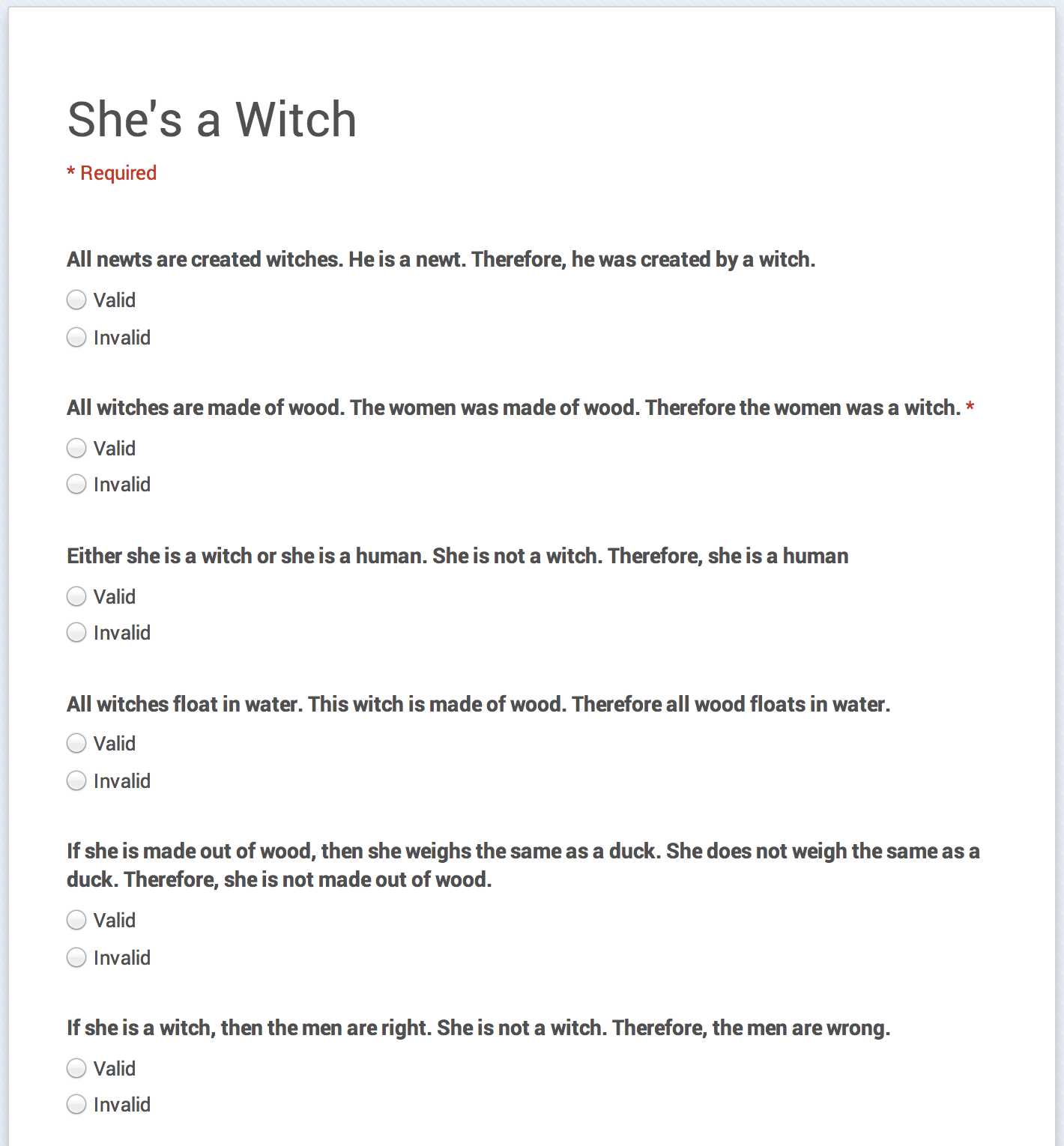
I have used forms twice already this week. Once was to have students sign out their devices. The second was to have students co-create a deductive syllogisms quiz and then that night teach a family member how to test the logic of a syllogism while they completed the quiz. By looking at the answers the next day we could identify the most inconsistently answered questions and examine why people had so much difficulty with those questions. It worked really well and I only had one parent send a message informing me that they are too busy to be doing homework assigned by their child's English teacher.

Tuesday, 9 September 2014

The Google Docs Table Work-Around (iOS)

As was obvious in my last post, my frustration with the Google Docs app and its lack of support for editing a table made in Docs was intense, to say the least. This was only furthered when some of the iPads we use were forcing students to use the app, not allowing them to edit the table in Chrome where it is editable. Today, one of my students discovered the work-around.

To make sure that Chrome opens the Google Doc, simple click and hold on the edit button (as seen in the picture). This will bring up a menu that allows you to choose "Open in New Tab." I can't begin to express how significant this little trick is to my classroom. We use many, MANY tables to organize and show thinking, and without this trick I would have had to reconsider using Google Classroom and my iPads in any significant way.

In a few cases students were forced into the Docs app when they selected the file from Classroom. The same click-and-hold trick works in that situation as well.

Tuesday, 2 September 2014

First day in class with Classroom

The day is finally upon us and I just finished teaching three classes with Classroom integration. I thought I would comment on a few practical points that myself and a few of my colleagues have noticed about Classroom.

  1. Although I realize that the intent of Classroom is to have students access it from their own devices, I am annoyed that the font is so small that students cannot read what is on Classroom when it is on the smart board. The ability to change font size is a must.
  2. I also ran into the problem that I know is going to be the most challenging, students needing their Google Ed email accounts. All of my grade tens knew their account info, but only a handful of my grade twelves remembered. I requested their login information two weeks ago, but our Google admin, like most I am sure, is completely overwhelmed this time of year. The required Ed accounts also means that I cannot share what I am doing in my class with parents!!
  3. A few of my colleagues have also noted that not being able to create drafts of posts makes planning a class much more difficult.
At this point, Classroom is creating more hurdles than it is helping. I have had to make all documents editable by anyone with the link and send students to that link through other avenues because without their Ed account, they can't even see the stream.

Tomorrow we will be co-constructing some documents. At this point I think I am going to have to work completely outside of Classroom to make it work.

Thursday, 21 August 2014

"About"

It is amazing to already see some of the changes that Google is making with Classroom. The additional features are making organizing my courses this semester much easier. Here are three things that I am pleased to see today.

First, the "About" page for each course provides an easy way for me to add all of the first-day-boring-waste-of-paper sheets that students are required to have easy access to. Also, the "About" page allows students quick access to a centralized G-Drive folder and my email address. This makes life much simpler.

Second, my Google admin created a course so that I could see a course from the student side (a function that should be built in to classroom, much like Blogger's ability to "view blog"). On the student page it looks to be one click on a classmates name will allow you to send them an email. This should greatly improve communication and collaboration in the class.

Third, when posting an announcement to a Classroom, you can choose to post that announcement to as many or as few of the Classrooms that you are running. For me this means that if there is an alternate schedule for the day, a reminder of a special day at school, or a need to let students know I am going to be absent, this can all be done with one announcement instead of having to update each Classroom individually. Very pleased.

More to come, including what I think is still missing from Classroom by Google.

Wednesday, 13 August 2014

It Begins!!!

It looks like my problem of not being able to access Classroom has been resolved by my Google Admin. She did have to activate the app and informed me that it could take up to 24 hours for it to become live.

I have spent about 30 minutes exploring and so far everything seems to meet the expectations set in the teaser video, but nothing to wow me yet. Here are a few of the things I have noticed so far.

1) The home screen is set up like an social media news feed and allows two options for teachers. You can either add an "announcement" or an "assignment" to the feed. When adding an assignment you can choose whether you want to the students to view, edit, or receive a copy in their drive. What is missing is the ability to collaborate on an announcement. If I wanted to work on a document with my students in real-time, I would have to post it as an assignment, even though it is not.

2) I am very glad to see that there is a pin provided so that students can add the course themselves, as I have always found adding students via their email address to be a frustrating experience. There is the option to add students yourself though, if you prefer.

3) Problem #1. I decided I wanted to look at Classroom from the student side so I tried to add my personal gmail account as a student. I was informed "You cannot add students outside your domain to courses". I believe this means that all of my students must be using their ED account assigned to them by the school board. For me this could already signal the death knell for Classroom. Here is why:

a) We have one Google admin at our board and every September she is overwhelmed with requests for student passwords because many of my students use personal accounts at school instead; which they should. Why would you want to keep logging off and on as a different user all of the time? There is no longer a division between work and personal and there should not be one at school (unless students would prefer. They should have the choice).
b) When a student joins my class from a different school board it will take several days to get them hooked up with an ED account. If I am going to run my entire course on Classroom, this is a major barrier.
c) Google apps are great because they allow for decentralization. This student sign-up procedure forces centralization again. Frustratingly similar to what I feel is wrong with D2L. I have autonomy in my physical classroom, let me have autonomy in my virtual Classroom!

4) Looks and feels light and airy, not overwhelming with buried material like other learning platforms I have used.

5) When you want to make an announcement on your wall, it is very easy to add files from your computer or Drive. Two frustrations I can foresee is that you cannot access files that have been shared with you on your Drive, which means you have to leave Classroom, go to Drive, add the shared file to your Drive, and then go back to classroom. Especially frustrating if you are trying to quickly share exemplars of student work or materials shared by a teaching partner (this will lead to multiple versions of a file). Also, there is no way to quickly add a video or audio announcement. Being able to access your webcam and leave messages in seconds would be amazing and something I had hoped to see.

6) Last comment for today. Assessing assignments looks exactly like it did in the promo video which is disappointing and does not reflect best practices. We mark using a 4 level, 4 category rubric. Classroom allows you to select how many "points" an assignment is worth or leave it as no assessment. I need to be able to attach a rubric as an assessment tool, both when the assignment is given and when it is assessed. Also, the ability for me to record video or audio commentary would allow for better and quicker feedback.

If you are listening Google, please don't make me leave Classroom to upload files to then go back to Classroom to attach them to the proper assignment and/or student!!  

So far Classroom appears to be a basic resource for a teacher to post assignments and announcements that allows for easy access to Drive. I do feel that the forced centralization is a major concern, as well as a seemingly unclear sharing/collaboration process. Also, it seems that the purpose of Classroom is to be a resource for students at home and not really a learning hub to be used during class. Perhaps my hopes do not align with Google's vision.

More to be seen and explored.


Thursday, 31 July 2014

In the beginning

As of yesterday, I have access to Google's new Classroom application. I am very excited to begin this journey, but thought I would start with an introduction of myself before I begin to explore what Google Classroom has to offer.

I am a secondary school teacher in Stratford, Ontario, Canada. I am in my tenth year of teaching and in my sixth school. I have been at Stratford Central for the last four years and it has been somewhat of a dream. We are a high achieving, publicly funded high school, with very few behaviour issues, which makes classroom management a simple task in comparison to many other schools.

This coming school year, I will be completing my last three semesters of my Masters degree in Digital Experience Innovation from the University of Waterloo. With this added demand, my Principal has given me an excellent schedule; I will be teaching 3 sections of academic grade 10 English and 3 sections of grade 12 college level English.

Starting this fall I will also be in a one-to-one device environment. I will have full time access to 17 iPads and 10 Chromebooks. With the reduced number of preps and the access to technology my goal this year is to be completely paperless by using Google Classroom as my starting point and to take advantage of Turnitin.com (and a variety of other sites) to help facilitate assessment.

Over the next year I will be posting about the rewards and challenges of Google Classroom, as well as any tips or tricks I pick up on the way. If you are reading this and have any questions or comments, please do not hesitate to post.

Thanks and enjoy your summer!